Your music. A little more organised.
The complete 0.7.2 evaluation guide.
Version 0.7.2 is an evaluation build. The app is ad-hoc signed; its installer is unsigned and not notarised. No installer is offered here while signing, device testing and release review remain incomplete.
Installation status
No public installer is available yet. Wait for the signed, notarised release and its verified download instructions. Do not disable Gatekeeper or strip quarantine to force an evaluation installer to run.
The guide below describes the 0.7.2 evaluation app for people already evaluating it. The intended installer includes its English transcription model and does not require Homebrew, Python, developer tools or an API key.
First launch and macOS settings
This evaluation build is ad-hoc signed. The installer is unsigned and has not been notarised by Apple. It is not yet cleared for general public distribution. Obtain a Developer ID signed and notarised release from the verified publisher before recommending installation to other people. Do not disable Gatekeeper or remove quarantine to force a blocked download to run.
A SHA-256 checksum confirms that two files match; it does not establish publisher identity or prove that software is safe. Keep macOS up to date and install only releases you trust.
Import MP3, M4A and WAV files
Choose Import Audio to select one or more MP3, M4A or WAV audio files. Choose Library → Import Folder to scan a folder and its subfolders. Uppercase extensions such as .WAV also work. Wait for the reading-audio progress panel to finish.
You can also right-click an audio file in Finder → Open With → M4A DJ, or drop files onto the M4A DJ app icon. The files are imported and the first matching file starts playing.
Importing keeps audio in its original location; it does not copy it into the app. Keep external drives connected when playing their tracks. Re-importing the same path refreshes its duration and metadata while preserving notes, ratings, hearts and play history. Protected or damaged files may fail to play.
Right-click track shortcuts
Right-click a track title or cell for Play, Pause/Resume for the playing track, Analyse Music, Transcribe, Details & Lyrics, favourites, ratings, Show in Finder, Copy File Path and Copy Music Summary. The action applies to the track you clicked, even when another row was previously selected.
Remove from Library asks for confirmation. It removes that track’s library entry and saved details, including analysis and transcripts, while keeping the original audio file. Export a library backup before removing entries you might want to restore. No permanent disk deletion is offered in this menu.
Analyse BPM, key, genre and mood
Select a track and choose Analyse Music, then Analyse Track. Analysis runs on this Mac using the bundled music-tagging model; no audio is uploaded and no account or download is needed. The library shows BPM, key and mood after analysis. Click the BPM column to sort by tempo.
Click the amber Analyse All button above the library, or choose Library → Analyse All Tracks, to analyse every track. This includes tracks hidden by search or filters and tracks that already have results. Your saved corrections remain intact. A progress panel opens automatically; close it to keep listening while work continues.
Library → Analyse Visible Tracks analyses the current filtered list. Library → Analyse All Unanalysed Tracks processes tracks with no saved analysis, one at a time. Progress appears above the library. Stop keeps all completed results. Run the unanalysed option again to resume. Library → Analysis Progress & Results shows failures.
Results are suggestions: genre and mood use up to twelve evenly spaced three-second excerpts; tempo and key use up to eight thirty-second sections. A score is a model output or signal-strength indicator, not a percentage guarantee of accuracy. Some music may have no confident genre, mood, key or tempo. Tempo estimation searches 60–200 BPM; use ½, ×2 or Tap Tempo to correct half/double-time interpretations. Tap at least three times with the beat.
Edit the fields and choose Save Corrections. Reanalysis preserves your saved corrections. Use automatic suggestions again removes your corrections and reveals the current estimates. Your saved analysis correction takes precedence in the library Genre column. Without a correction, existing genre in Details & Lyrics or file metadata takes precedence over automatic suggestions. Original tags remain unchanged. The analysis panel shows all suggested genres and their model scores. Unknown vocals are labelled Uncertain.
Energy is a relative recording-level score, not LUFS or mastering advice. Danceability is a beat-regularity estimate, not a trained mood prediction. Key detection uses chroma-profile matching and can confuse relative major/minor or changing keys. Genre and mood are limited to the model vocabulary and may be wrong. Six seconds of non-silent audio is required; recordings longer than two hours are not analysed. Original files are never rewritten.
Music filters and smart playlists
Click Music filters above the library. Combine a BPM range, genre, mood, exact key, energy level, vocal status and Danceable (score at least 60/100). These combine with the search box and existing library filter. Genre and mood match text without requiring exact capitalisation; key uses the displayed name such as A minor.
Enter a playlist name and choose Save Smart Playlist. It saves your search and filters, not copies of the audio. Choose it again from Smart Playlists to show all currently matching tracks; newly analysed or edited tracks enter or leave automatically. Remove Playlist removes only the saved rules.
Analysis and corrections are included in Export Library Backup. Saved smart-playlist rules are stored separately in smart-playlists.json beside library.json. To back up both, quit the app and copy the entire M4A DJ folder in Application Support. CSV export now includes analysis values; it still exports the whole library. Audio files require their own backup.

Make M4A DJ the default audio player (optional)
In Finder, select an MP3 file and choose File → Get Info (Command-I). Expand Open with, choose M4A DJ, then click Change All and confirm. Repeat for an M4A file and a WAV file if you want all three formats to open in M4A DJ by double-clicking.
Installation adds M4A DJ to Open With but does not change your existing default player automatically. You can reverse this setting by choosing another app in the same Get Info panel.
Play, pause, seek and choose playback order
Select a track and choose Play Selected, or double-click an ordinary row cell. Use Play/Pause, Previous and Next in the player. Drag the progress slider to seek, or adjust Volume. The player header names the current track; the selected track in the list can be different.
Choose a playback order such as Alphabetical, Shortest first, Highest rated or Most played. Clicking a sortable column heading changes its order and playback follows the displayed order. Random uses a shuffled queue. Search and the rating filter restrict the matching list; changing them does not stop the current song.
Reveal in Finder locates the playing file. Playback uses the original audio without EQ processing. Closing the last window quits the app; quitting also cancels an active transcription.
Search and filters
Click the search field or press Command-F. Search covers names, file paths, embedded metadata, artist, album, genre, original lyrics, style prompts, Suno links and saved transcripts. Capital letters and accents are ignored. With multiple words, every word must appear somewhere in the track’s fields.
The filter also applies: All tracks, Unrated only, Rated only, Liked tracks or With transcripts. If no results appear, clear the search with × and choose All tracks. Example: warm soul can match warm in a style prompt and soul in Genre.
Ratings, hearts and number of plays
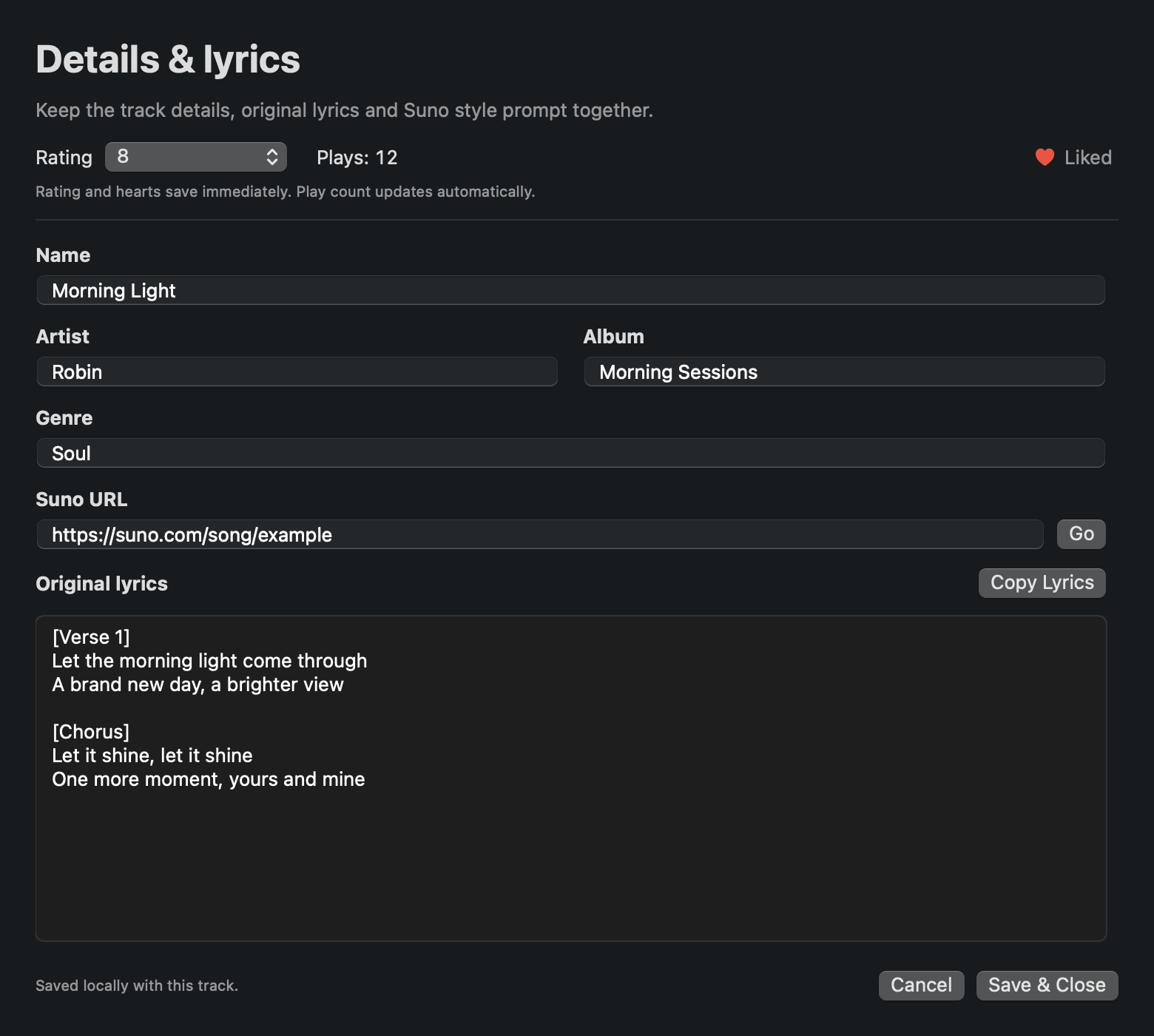
Rate a track from 0 to 10, or choose Unrated. The player’s rating controls affect the currently playing track. The list’s Rating menu and the Details & Lyrics panel affect their own track.
Click an outline heart in the list, player or panel to like that track. A filled red heart means liked; click again to remove it. Hearts are saved locally in M4A DJ and do not add a like to Suno. Ratings and hearts save immediately, even if you later cancel unsaved text edits in the panel.
Plays is an automatic count of playback starts, not a count of complete listens. Starting or replaying a track adds one; pausing and resuming does not. It is displayed in the list and panel and is not an editable field.
Edit names, genres, original lyrics and style prompts
Select a track, then choose Details & Lyrics below the list. Edit Name, Genre, Artist and Album, paste the original Suno lyrics and style prompt, and add a Suno track/share URL if available. Scroll within the panel to reach lower fields.
Click Save & Close, or press Command-S in that panel, to save text edits. Cancel discards unsaved text edits. Copy Lyrics and Copy Style Prompt copy their fields. A name is required; the other text fields may be empty. Name and genre changes update the library list. These details are stored in the library and do not rename the audio file or rewrite its embedded tags.
Original lyrics and generated transcripts are separate. Library → Refresh Metadata updates embedded file information without overwriting your saved details, lyrics, style prompt, transcript, hearts, ratings or play history.
Open a track in Suno using Chrome
Paste the Suno song/share link into Suno URL in Details & Lyrics, then click Go. M4A DJ opens that link specifically in Google Chrome. Links with or without https:// are accepted. Go opens the entered link but does not save the panel; use Save & Close to keep it.
If Chrome is missing, install Google Chrome normally and try again. You may need to sign in to Suno in Chrome to view a private track. If the page is unavailable, check that you pasted the correct link and still have permission to view it. M4A DJ does not sign in to Suno, create tracks, publish content or use credits.
Transcribe audio locally
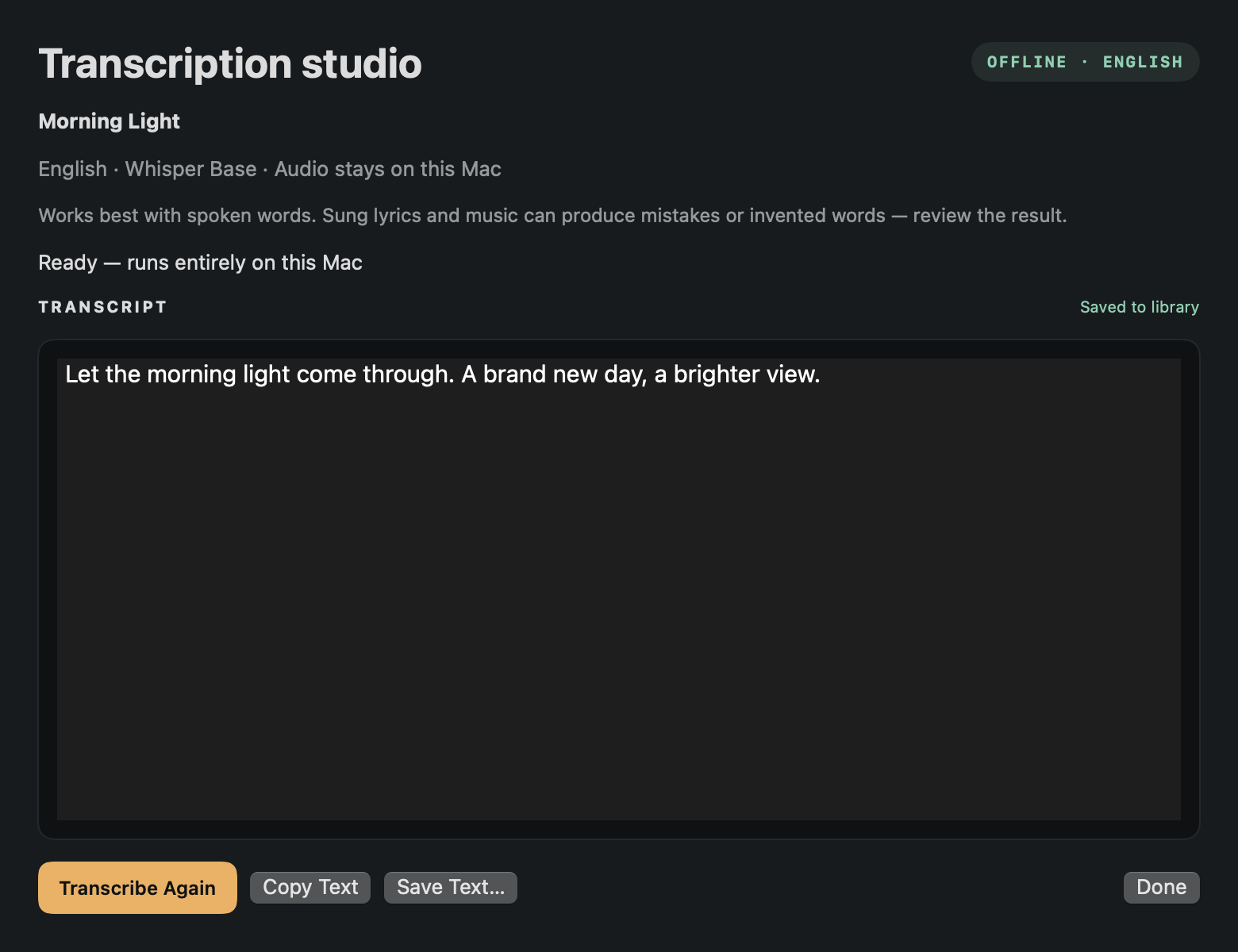
Select a track and choose Transcribe below the list. In the panel, click Transcribe and wait. Preparation and English speech recognition run on this Mac. The status shows the current stage and elapsed time. Click Cancel to stop; quitting the app also stops the worker.
The installer bundles Whisper Base English, so transcription works offline without an account or API key. Original audio is not uploaded or modified. Successful text is saved with the track separately from its original lyrics. Use Copy Text or Save Text… to reuse it, or Transcribe Again to replace it with a new successful result. Cancelling or failing a retry keeps the previous saved transcript.
Spoken English works best. Singing, instrumental passages, overlapping voices and background music can cause missing or invented words. Review and edit the text directly in the panel. Save & Done (Command-S) saves corrections to the library. Copy Text and Save Text export the current editor text. A retry asks before replacing an existing transcript. Save edits explicitly before closing the panel or quitting. Quit-time protection for unsaved editor changes still requires release validation. Other languages, speaker labels and word-timed subtitles are not included in this version. Long tracks take longer and use the Mac’s CPU. If local transcription files are reported missing, reinstall the app.
Export ratings and transcripts
Library → Export Ratings CSV saves the entire library’s titles, paths, durations, ratings, play counts and dates, regardless of the current search. Open the file in a spreadsheet app. The CSV does not include hearts, original lyrics, style prompts, custom details or transcripts and is not a complete backup.
Use Save Text… in the transcription panel for a transcript, or the copy buttons for original lyrics and style prompts. Back up the complete app support folder to keep saved library fields and smart-playlist rules.
Back up, restore, move and update
Choose Library → Export Library Backup to save a JSON snapshot of all saved library fields, including lyrics, transcripts, hearts and track details. Save open edits first. The backup contains file paths and metadata, not audio; back up your original audio folders separately.
Quit M4A DJ before making a backup. In Finder choose Go → Go to Folder and paste:
~/Library/Application Support/M4A DJ/
Copy the entire M4A DJ folder to your backup location, including library.json and smart-playlists.json. Also back up your original audio folders separately: the library contains metadata and file paths, not the audio itself.
To restore, quit the app, keep a copy of the current library.json, then restore your saved library.json and smart-playlists.json and reopen M4A DJ. Replacing the file replaces the library rather than merging it.
Moving audio changes its path. Re-importing a moved file creates a separate entry; notes are not automatically transferred. On another Mac, existing paths must still point to the audio files.
Once a signed public update is available, save open panel edits, back up, quit the app and follow that release’s installation instructions. It replaces the app in Applications and leaves your per-user library and original audio files in place. Removing the app from Applications does not remove the library or your music.
Remove tracks safely
Library → Remove Selected from Library removes one entry after confirmation. Library → Clear Library removes every entry, including tracks hidden by search or filters. These actions keep your original audio files on disk; they do not delete them permanently or move them to Trash.
Removal discards the entry’s saved ratings, hearts, notes, details and transcript. Choose Library → Export Library Backup first to preserve those fields. Re-importing audio after removal does not recover discarded notes. To delete original audio, manage the files yourself in Finder.
Troubleshooting
No sound: check the app’s Volume, the Mac’s output device and volume, and that the track is playing. Confirm the file is still present and the external drive is connected.
Missing file: use the displayed path to locate it. Returning it to its original location lets the existing entry find it again.
No tracks after importing: use MP3, M4A or WAV files; check folder permission and clear the search and filter. A corrupt file or unsupported codec inside a container can fail even with a supported extension.
Could not save the library: check free disk space and that your user can write to the M4A DJ Application Support folder. Copy unsaved text before closing the panel.
Wrong app opens: use Finder’s Open With, or change the default for that file type in Get Info.
Suno will not open: check the URL, Chrome installation and internet connection.
Installation blocked: follow First launch and macOS settings above. Do not change global security settings.
Keyboard shortcuts
Command-F: focus library search.
Space: play or pause when not editing text.
Command-Left Arrow: previous track when not editing text.
Command-Right Arrow: next track when not editing text.
Command-S: save and close Details & Lyrics.
Command-Q: quit.
Use the Help button or Help → M4A DJ Help to return here. The Help search box filters topics; clear it to show the full guide.
Safety and release status
Version 0.7.2 protects spreadsheet exports from common formula prefixes, rolls library changes back when saving fails, creates private temporary audio folders, checks the English model checksum, rejects invalid saved numeric values and cancels active analysis when quitting. Library removal has no disk-delete path.
Save edits before quitting. Temporary files are normally removed after processing, but a crash or forced shutdown can leave files behind. Library data and backups are readable JSON, not encrypted. Other applications running as your user may read them. Full-disk encryption and sensible backups remain useful.
AI results can be wrong or incomplete. Review transcripts and musical estimates. Use recordings only where you have the necessary rights and permissions. No permission to publish, copy or perform third-party music is supplied by this app.
Nothing in these notices excludes rights or remedies that cannot lawfully be excluded, including under the Australian Consumer Law.