
See what’s there.
Scan the currently loaded references and preview a sample. Opening the cleaner and scanning do not delete anything.
Midjourney uploaded-reference cleaner
A fresh direction.
A little less old inspiration.
Preview and batch-clear uploaded Midjourney references using the library’s own controls. Scan first, choose a batch, and start when you’re ready.
Desktop Chrome · Manual installation · No account credentials or API key required by the extension.
Independent tool, not an official Midjourney product.
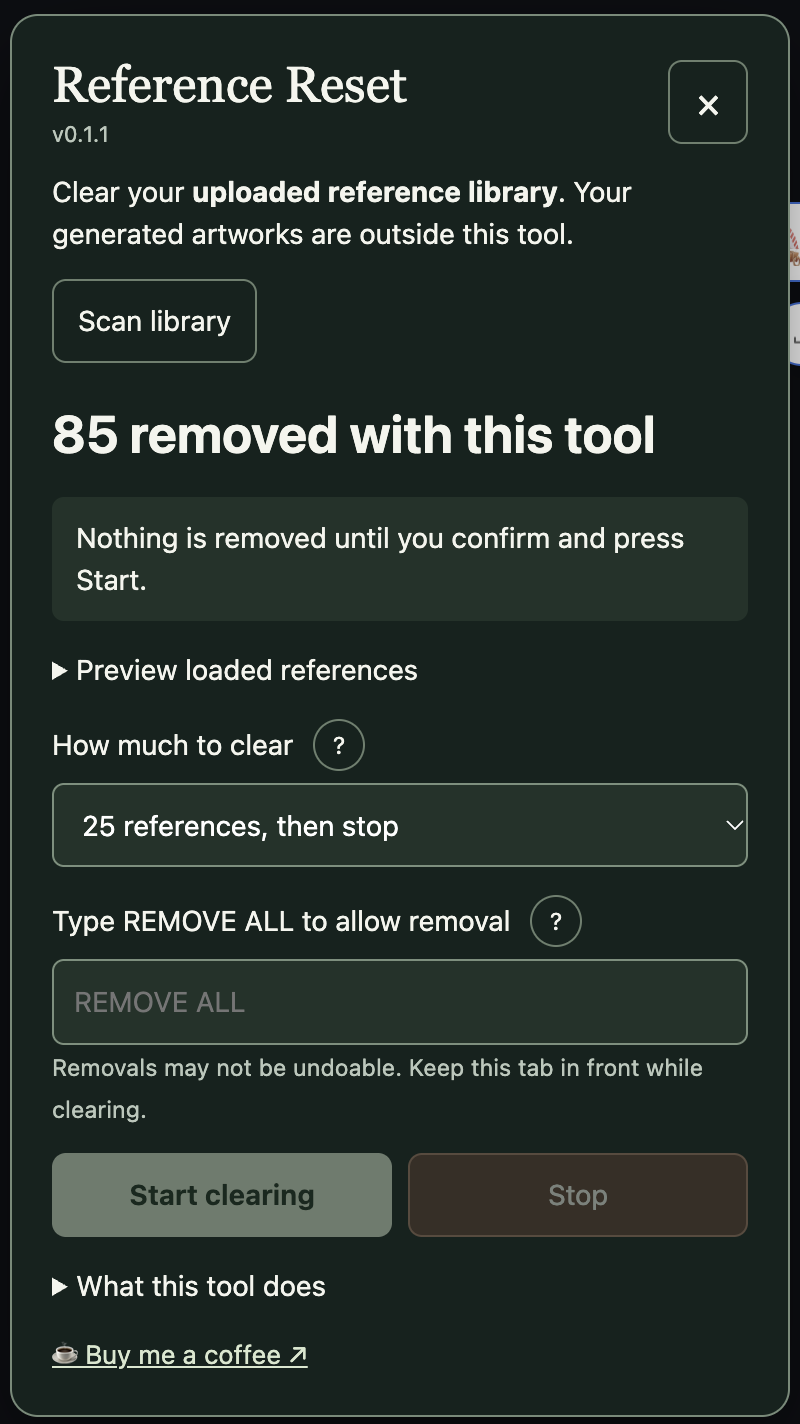
Scan the currently loaded references and preview a sample. Opening the cleaner and scanning do not delete anything.
Choose 25, 50, 75, 100, or continue through the loaded library. Refresh and scan after completion to check for older uploads.
Type the phrase matching your selected batch (for example REMOVE 25), then press Start clearing. Only the entire-library option uses REMOVE ALL. Stop prevents another removal from being queued; an action already sent may still finish.
Hover over controls, focus them with your keyboard, or tap a question mark for a short explanation. The extension and this page display the version clearly.
Read the installation and usage guide ↗
How the extension handles data ↗
Generated-artwork Trash controls are outside its scope. It uses only the expected menu in the open uploads panel and stops if those controls cannot be confirmed.
Do not rely on undo. Check your references and choose a small batch before starting.
No server-wide deletion claim is made. It uses the same Remove control as a manual click. Midjourney controls retention and historical reference URLs.
This download is for desktop Chrome. It is not an iPhone or Android Chrome extension.
There is no RobsAiTools backend or analytics in the extension. Progress stays in Chrome. Previews reuse existing library image URLs, and removals use Midjourney’s normal account-authorised controls. The RobsAiTools website has its separate privacy information.
Click the small image icon at the top-left of the prompt box. That’s all “open the uploads library” means.
Stay in the Midjourney tab where you normally type a prompt. Hover over the little image icon to see Add images, then click it. Your previously uploaded images appear in a panel below the prompt. You do not need to visit another library page or upload a new image.
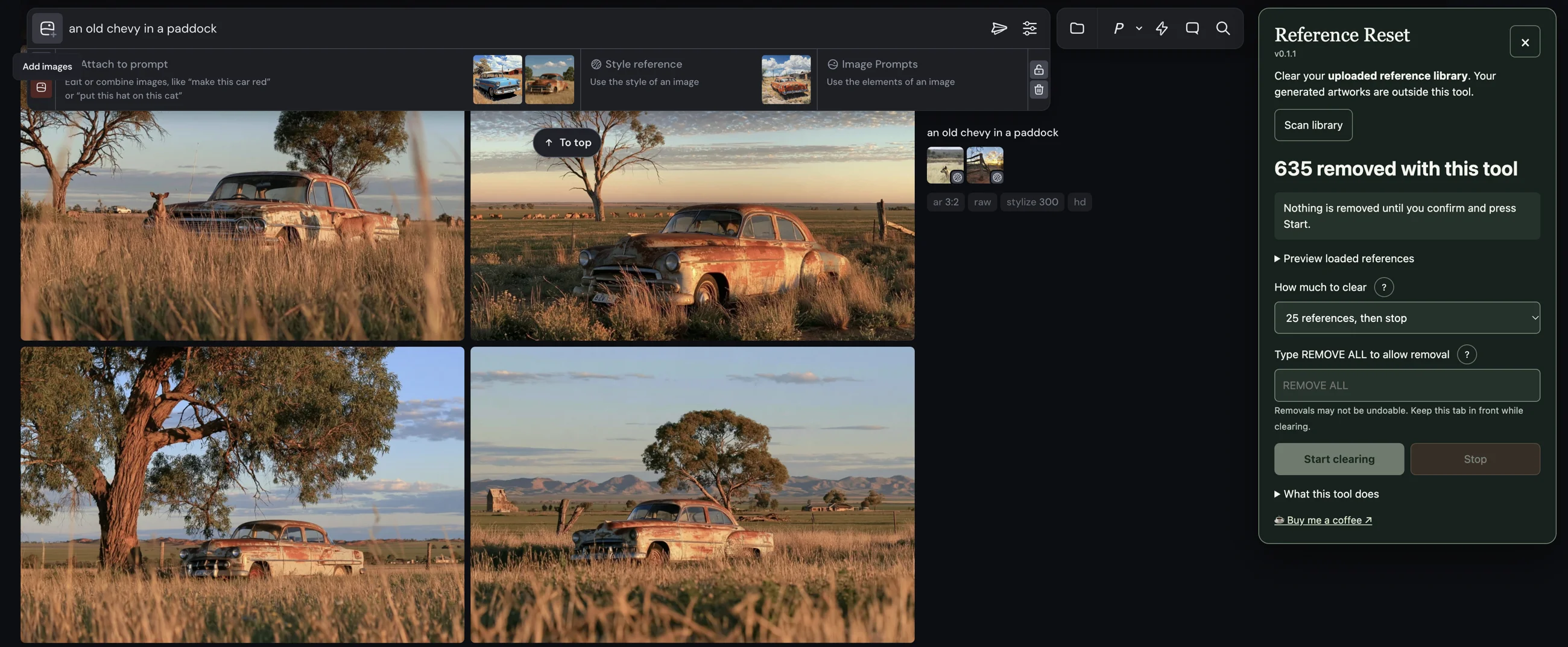
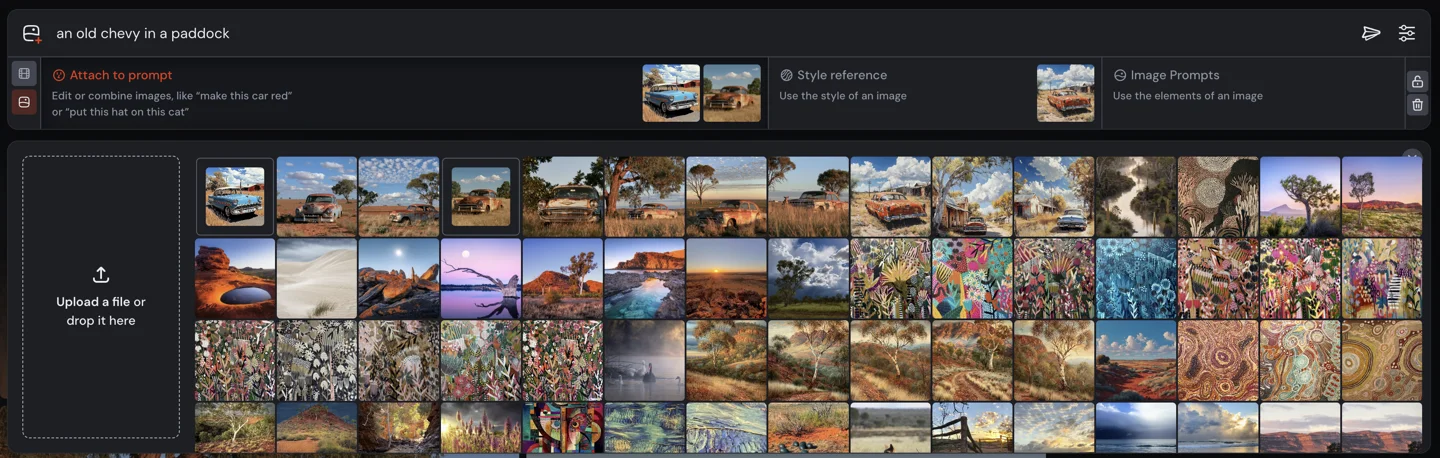
If the thumbnail grid and upload tile are already visible, leave them open and continue. The Style reference and Image Prompts areas belong to the current prompt; the uploads grid underneath is the library Reference Reset scans.
After trying many image prompts, your Midjourney uploads panel can fill with references from old projects. Reference Reset is a desktop Chrome extension that repeats the library’s normal Remove action, one uploaded entry at a time, after you choose a batch and confirm.
It is useful when you have already decided which old library entries you no longer need. It is not a duplicate finder or a selective image organiser: the current version processes the first available entries in the loaded panel, rather than letting you pick individual thumbnails in its preview.
Check the currently loaded count and a sample of up to 12 thumbnails before you decide whether to continue.
Choose 25, 50, 75 or 100 references, then stop and review. “Entire library” continues through the entries that become available while it runs.
The removed total is saved in this Chrome extension’s local storage. No RobsAiTools account or AI API key is requested by the extension.
If you only want to stop using an image in the prompt you are composing, use Midjourney’s own prompt controls. Reference Reset is for removing entries from the uploaded-reference library. Its scope does not include generated-artwork galleries or files on your computer.
Library removal may not be undoable. Keep the original files you may want to upload again. This tool cannot promise deletion from Midjourney’s servers, old jobs or historical reference URLs.
v0.1.5 · 30 October 2026: an image-and-plus SVG beside the manual Add images instruction, saved pauses from 0.1 to 2.0 seconds, flicker-aware counting, and batch confirmations for 25, 50, 75 or 100 references. Opening Add images remains a deliberate manual step. No added permissions.
Updating an existing installation · Release details and SHA-256 checksum